


 Italiano
Bitaxe Gamma 602 — User Manual
The complete setup, configuration, tuning, and maintenance guide for the Bitaxe Gamma 602 — the single-chip open-source Bitcoin & Bitcoin Cash solo miner. Read the safety warnings below before first use.
⚠️ Safety Warnings
- Use only the included 5 V 6 A 30 W (2.1/5.5 mm barrel jack) power supply. Third-party power supplies may cause permanent hardware damage or fire.
- Keep away from children and pets. Fan blades and PCB surfaces become hot during operation.
- Do not insert fingers, tools, or objects into fan openings while the device is powered.
- If you detect smoke, a burning smell, or unusual noise: disconnect power immediately. Do not use water on electrical fires.
- Ensure adequate ventilation at all times. Never operate in an enclosed space without airflow. Maintain at least 15 cm clearance around the device.
- Do not operate above 40 °C (104 °F) ambient temperature.
- Do not expose to liquids, moisture, or direct sunlight.
- Do not modify PCB components — this voids the warranty.
Open-source acknowledgement: The Bitaxe Gamma 602 is based on the open-source Bitaxe hardware project. Firmware (AxeOS) is distributed under its open-source licence (ESP-Miner). All schematics, PCB layouts, and firmware source code are publicly available. Smart Mining S.r.l. does not claim ownership of the open-source components.

1. Product Overview

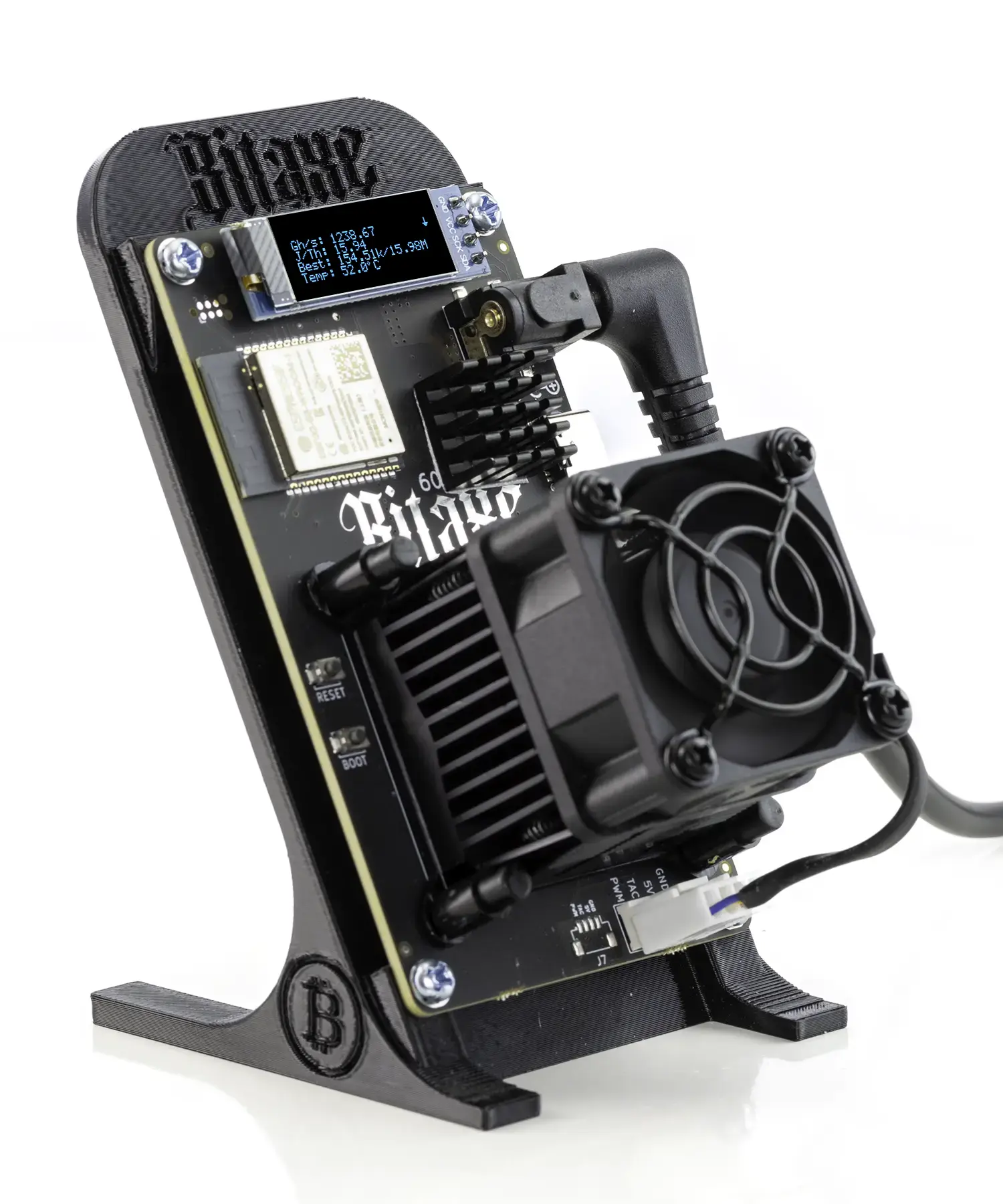
1.1 — Introduction
Bitcoin and Bitcoin Cash operate using a process called proof-of-work mining. Specialised chips called ASICs perform trillions of SHA-256 calculations per second, competing to solve a mathematical puzzle. The first miner in the world to find the answer wins the current block reward — currently 3.125 BTC or 3.125 BCH — paid directly to the winner’s wallet. A new block is produced approximately every ten minutes, so a new draw takes place 144 times every day.
Solo mining means competing for the full block reward on your own, without splitting it with anyone. The Bitaxe Gamma 602 is part of the open-source Bitaxe family, using the same BM1370 ASIC silicon found in Bitmain’s industrial Antminer S21 Pro. At ~1.2 TH/s stock hashrate it is the most accessible way to hold a valid ticket in every Bitcoin block draw from your home.
This hardware family has a verified track record. Bitaxe devices have confirmed multiple full block wins on-chain, with payouts ranging from approximately €186,000 to over €297,000 at the time of winning. Every entry is permanently recorded on the Bitcoin blockchain and publicly verifiable.
1.2 — Technical Specifications
| Feature | Bitaxe Gamma 602 |
|---|---|
| ASIC chip | 1× Bitmain BM1370 (5nm) |
| Hashrate | ~1.2 TH/s |
| Algorithm | SHA-256 |
| Supported coins | Bitcoin (BTC), Bitcoin Cash (BCH) |
| Power draw | ~24 W |
| Efficiency | ~20.0 J/TH |
| Connectivity | Wi-Fi 2.4 GHz + USB-C (debug) |
| Display | OLED 0.91″ monochrome |
| Fan configuration | 1× 40 mm brushless PWM |
| Noise level | ~35 dB |
| Input voltage | 5 V DC (2.1/5.5 mm barrel jack) |
| Power adapter | 5 V 6 A 30 W |
| Dimensions | 10 × 6 × 11.5 cm |
| Weight | 145 g |
| Dual mining | No — select either BTC or BCH |
| Firmware | AxeOS (open-source, ESP-Miner) |
| First released | August 2024 |
| Warranty | 12-month commercial warranty |
AxeOS provides a browser-based dashboard — no app to install, no account to create. Every setting is accessible from any phone or laptop on your home network. Firmware updates are applied over Wi-Fi in under two minutes.
1.3 — Getting to Know Your Device
1.3.1 — What Is in the Box
- Bitaxe Gamma 602 1.2 TH/s device unit (1× BM1370 chip, premium heatsink, brushless cooling fan)
- 5 V 6 A 30 W power adapter with barrel connector
- Power cable with regional adapter
- 3D-printed black desktop stand
- A Quick Start Guide (step-by-step setup instructions in English and Italian)
Use only the included 5 V 6 A 30 W power adapter. Using an incompatible power supply will cause voltage instability and may permanently damage the device.
1.3.2 — Device Diagram
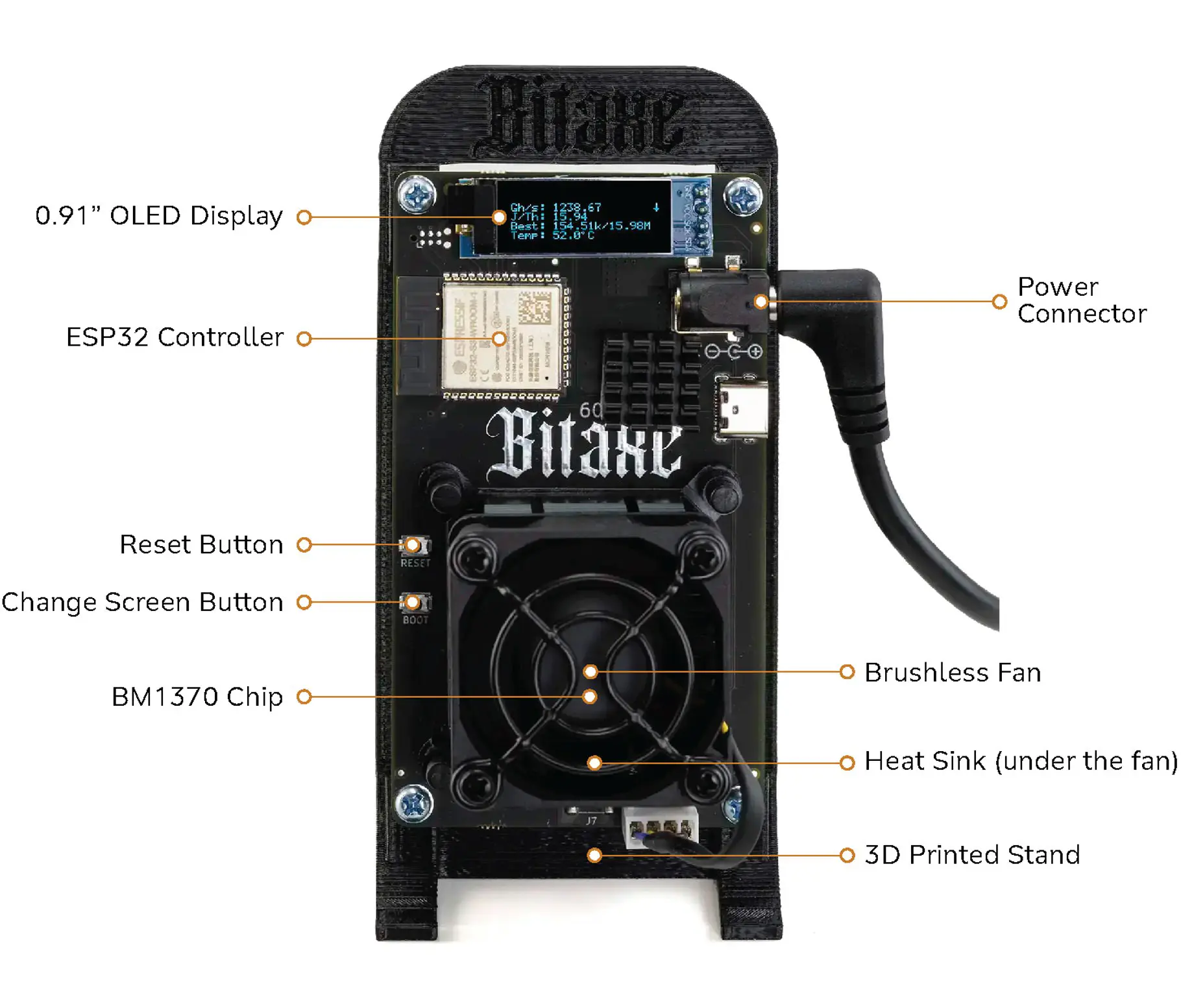
1.3.3 — Component Identification
The Bitaxe Gamma 602 contains one BM1370 ASIC chip that performs all SHA-256 hashing calculations. A single 40 mm PWM fan maintains airflow across the chip and heatsink assembly.
An ESP32-S3 microcontroller manages Wi-Fi connectivity, runs the AxeOS firmware, drives the OLED display, and coordinates the ASIC chip. A VRM (Voltage Regulator Module) converts the 5 V input to the precise voltage required by the BM1370. The 0.91-inch OLED module on the front face provides at-a-glance statistics without needing a browser.
2. Before You Begin
2.1 — What You Will Need
- A Wi-Fi router with the 2.4 GHz band enabled (5 GHz is not supported)
- A phone, tablet, or laptop with Google Chrome (for initial setup and monitoring)
- A valid Bitcoin (BTC) and/or Bitcoin Cash (BCH) on-chain wallet address
2.2 — Your Wallet Address
Your wallet address is where the full block reward is sent if your Bitaxe Gamma 602 finds a block. It also serves as your worker identifier on the mining pool — no account registration is required. The address is public information and safe to share; what must never be shared with anyone is your wallet’s seed phrase (the 12 or 24 words generated when you create the wallet).
2.2.1 — Creating a Bitcoin (BTC) Wallet Address
Download a self-custody wallet such as Electrum (desktop, electrum.org) or BlueWallet (mobile, bluewallet.io). Create a new wallet, write down the seed phrase and store it securely offline, then copy a receiving address. Use a native SegWit address beginning with bc1q — Taproot addresses beginning with bc1p may cause compatibility issues with some solo mining pools.
2.2.2 — Creating a Bitcoin Cash (BCH) Wallet Address
Download Electron Cash (electroncash.org) for desktop or the Bitcoin.com Wallet for mobile. Create a new wallet, back up the seed phrase offline, and copy a receiving address. BCH addresses in CashAddr format begin with q (e.g., qp3w…) — this is the correct format for mining pool configuration.
Never use an exchange address (Coinbase, Binance, Kraken, etc.) as your mining address. Exchanges may reject direct mining payouts or restrict accounts that receive them. Always use a self-custody wallet where you control the private keys.
2.3 — Device Placement and Ventilation
The Bitaxe Gamma 602 draws ~24 W at stock settings. Place it on a hard, flat, non-flammable surface using the included stand. Maintain a minimum clearance of 15 cm on all sides, particularly on the fan inlet and exhaust sides. Do not place the device in a drawer, cabinet, or enclosed shelf without dedicated ventilation.
The optimal ambient temperature is 15–30 °C (59–86 °F). Keep the device away from moisture, direct sunlight, curtains, and other flammable materials. Inspect and clean the fan and heatsink monthly using compressed air.
3. Initial Setup
3.1 — First Power-On
Connect the barrel jack connector from the power supply to the barrel connector port of the device. Plug the power supply into a wall outlet. The fan will start and the OLED will light up. Within 30 seconds the device will display its SSID — a network name in the format Bitaxe_XXXX, where XXXX is a unique identifier. The device is now ready for Wi-Fi configuration.
3.2 — Connecting to Your Home Wi-Fi
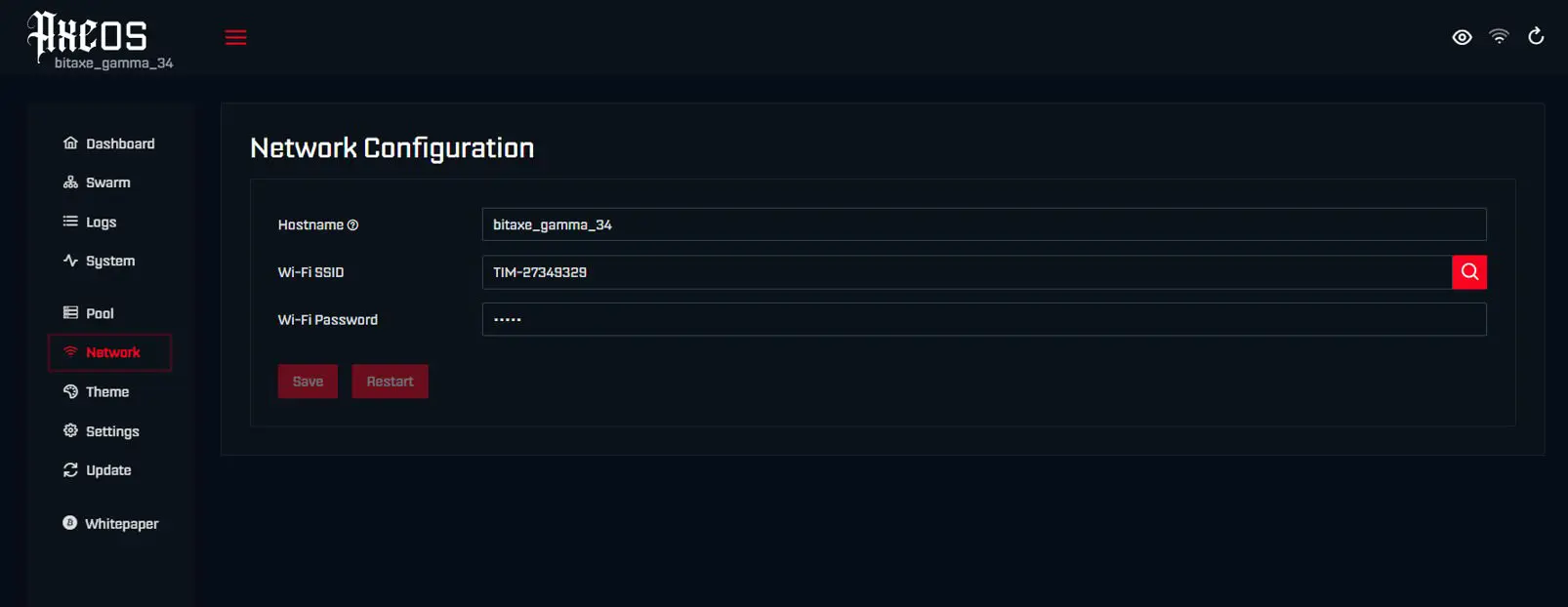
- On your phone, tablet, or laptop, open Wi-Fi settings and scan for available networks.
- Connect to the Bitaxe_XXXX network. No password is required for this initial hotspot.
- A setup page (captive portal) should open automatically in your browser. If it does not, open Chrome and navigate to http://192.168.4.1
- In the setup portal, enter your home Wi-Fi network name (SSID) and password. Remember that only 2.4 GHz networks are supported.
- Tap Save, then tap Reset / Restart.
- The device reboots and connects to your home network. After 15–20 seconds, the IP address assigned by your router appears on the OLED display — for example, 192.168.1.45.
Tip: set a static DHCP reservation for the device in your router’s admin panel using its MAC address (shown on the System screen). This ensures the IP address never changes.
3.2.1 — Wi-Fi Troubleshooting
| Problem | Likely Cause | Solution |
|---|---|---|
| Hotspot not visible after 60 s | Boot not complete | Unplug and re-plug the power supply; wait 30 s |
| Cannot connect to Bitaxe_XXXX | Phone auto-connecting to 5 GHz | Manually select the Bitaxe_XXXX network |
| Captive portal does not open | Browser did not detect portal | Open Chrome and navigate to http://192.168.4.1 |
| Wrong password — device will not connect | Typo in credentials | Unplug power; wait 10 s; re-plug; reconnect to hotspot |
| ASUS router — device cannot connect | AI Protection blocking connection | Disable AI Protection in router admin panel; retry |
3.3 — Accessing the Web Interface
Ensure your phone or laptop is connected to your home Wi-Fi — not to the Bitaxe hotspot. Open Google Chrome and type the IP address shown on the OLED screen into the address bar (e.g., http://192.168.1.45). The AxeOS dashboard loads immediately and updates in real time. Bookmark this address for future access.
3.4 — Configuring Mining Settings
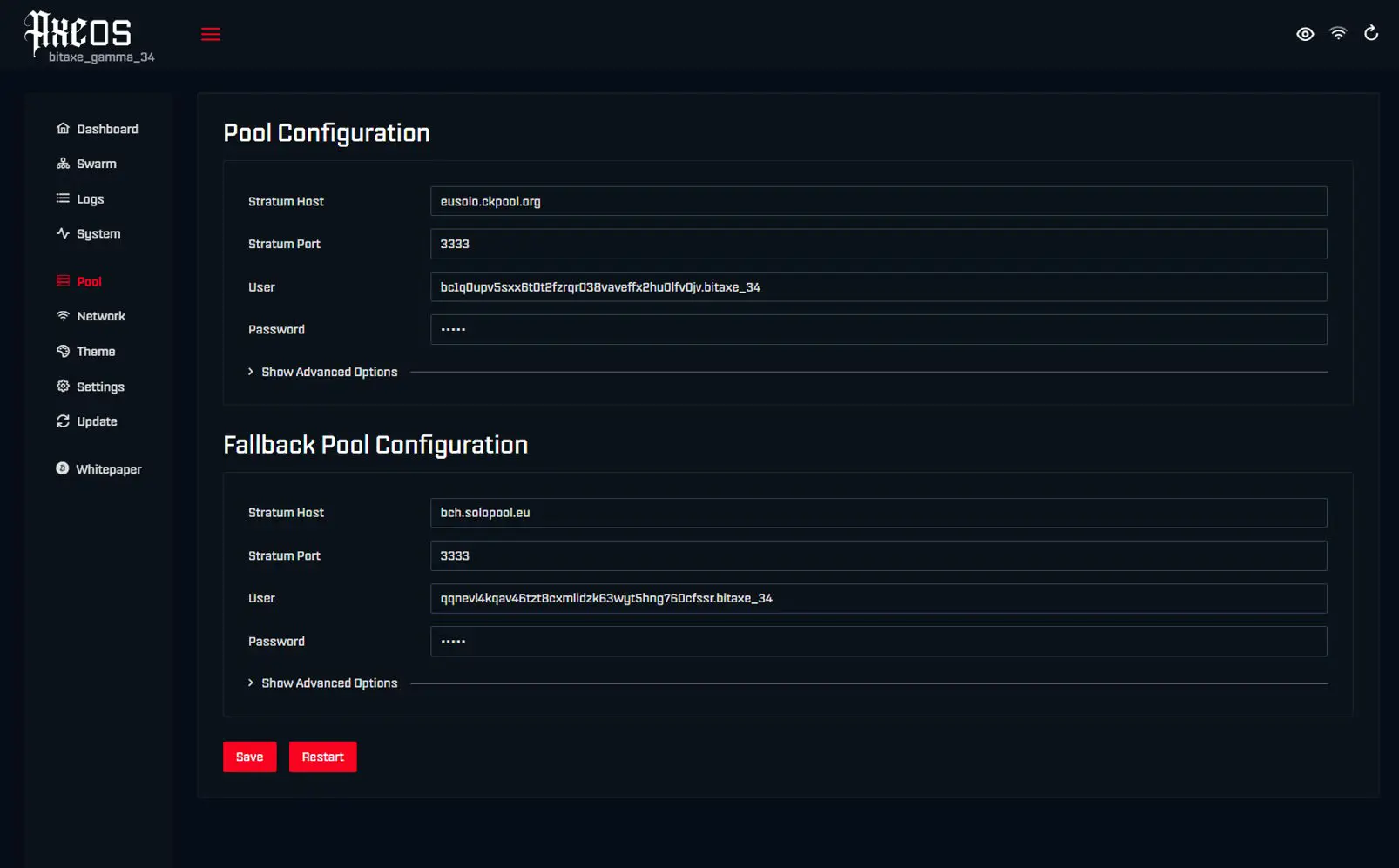
3.4.1 — Selecting a Mining Pool
In the AxeOS dashboard, navigate to Settings. Under the Stratum / Pool section, enter the URL and port of your chosen mining pool. The miner is preconfigured to mine Bitcoin (BTC) with the Europe Solo CKPool (in the main Pool Configuration section), and Bitcoin Cash (BCH) with Solopool.eu (in the Fallback Pool section). These are two of the most popular mining pools that offer low latency for users in Europe, low difficulty that is ideal for the Bitaxe Gamma 602, and no registration requirement. If you want to mine Bitcoin (BTC), nothing needs to be modified. If you want to mine Bitcoin Cash (BCH), in the AxeOS dashboard navigate to the Pool section and swap the settings of the Fallback Pool Configuration and the Pool Configuration. You can select different mining pools by entering the Stratum Host and Stratum Port of your selected pool in the Pool Configuration and the Fallback Pool sections.
| Pool | Stratum URL | Port | Fee | BTC | BCH |
|---|---|---|---|---|---|
| Solo CKPool | solo.ckpool.org | 3333 | 2% | ✓ | — |
| Solopool.eu | bch.solopool.eu | 3333 | 0.5% | — | ✓ |
| Solopool.eu | btc.solopool.eu | 3337 | 1% | ✓ | — |
Solo mining means competing for the complete 3.125 BTC block reward on your own. Pool mining splits rewards across many participants and pays out small, predictable amounts. The vast majority of buyers choose solo mining.
3.4.2 — Entering Your Wallet Addresses
In the AxeOS dashboard navigate to the Pool section. In the User field for the Pool Configuration, enter your Bitcoin (BTC) wallet address followed by a period and the name you want to give your miner (if you left the Pool Configuration to mine BTC — if not, enter the BCH wallet address). Leave the Password field blank or enter the letter x. In the Fallback Pool Configuration User field, enter your Bitcoin Cash (BCH) wallet address followed by a period and the name you want to give your miner (if you left the Pool Configuration to mine BCH — if not, enter the BTC wallet address). Leave the Password field blank or enter the letter x. If you are lucky and mine a BTC or BCH block, the full block rewards will be sent to these addresses.
3.4.3 — Saving Settings and Starting Mining
Click Save, then Restart. The device reboots and begins mining within 60 seconds. On the dashboard, hashrate fluctuates in the first 5–10 minutes — this is normal. After 10 minutes, expect approximately 1.2 TH/s at the preconfigured settings.
3.4.4 — Pool Monitoring
To monitor your Bitcoin (BTC) mining pool, navigate to stats.ckpool.org (or your pool URL if you selected a different BTC pool) and enter your BTC wallet address. To monitor your Bitcoin Cash (BCH) mining pool, navigate to solopool.eu/miner/ (or your chosen BCH pool) and enter your BCH wallet address.
Pool-side data updates every few minutes — do not expect second-by-second accuracy. Your Best Difficulty score is the most meaningful long-term indicator: the higher it climbs, the closer you are getting to solving a full block.
4. Device Interface
4.1 — Physical Buttons
The Bitaxe Gamma 602 has two buttons: the top button resets the device, and the bottom button cycles through the display screens.
4.2 — The OLED Display
The 0.91-inch monochrome OLED display shows real-time mining statistics across multiple screens. All configuration is performed through the web interface — the display is read-only.
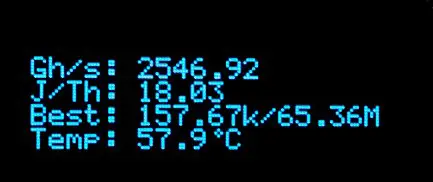
Screen 1 — Mining Summary. Shows the current hashrate in GH/s or TH/s, the operating efficiency in J/TH, your Best Difficulty (the highest-difficulty share your device has ever submitted — your closest approach to finding a full block), and the ASIC chip temperature.
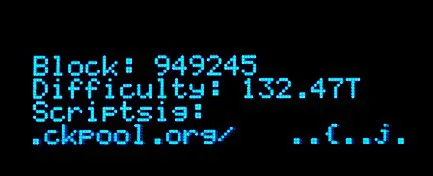
Screen 2 — Network and Pool Status. Shows the current block, the network difficulty, and details from the mining pool.
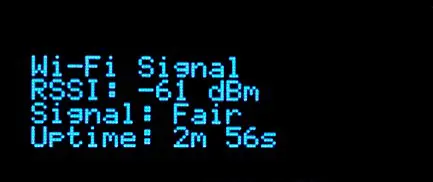
Screen 3 — Temperature and Power. Shows your home Wi-Fi signal strength and total uptime since the device was last restarted.
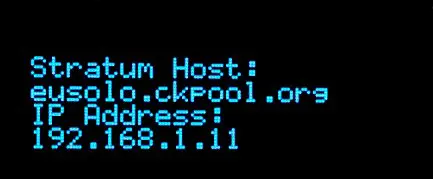
Screen 4 — System Information. Shows the configured pool Stratum host URL and the device’s current IP address.
5. Web Interface
The AxeOS web dashboard is your primary tool for monitoring and configuration. Access it by typing the device’s IP address into Chrome on any phone or laptop on the same Wi-Fi network.
5.1 — Dashboard: Main View
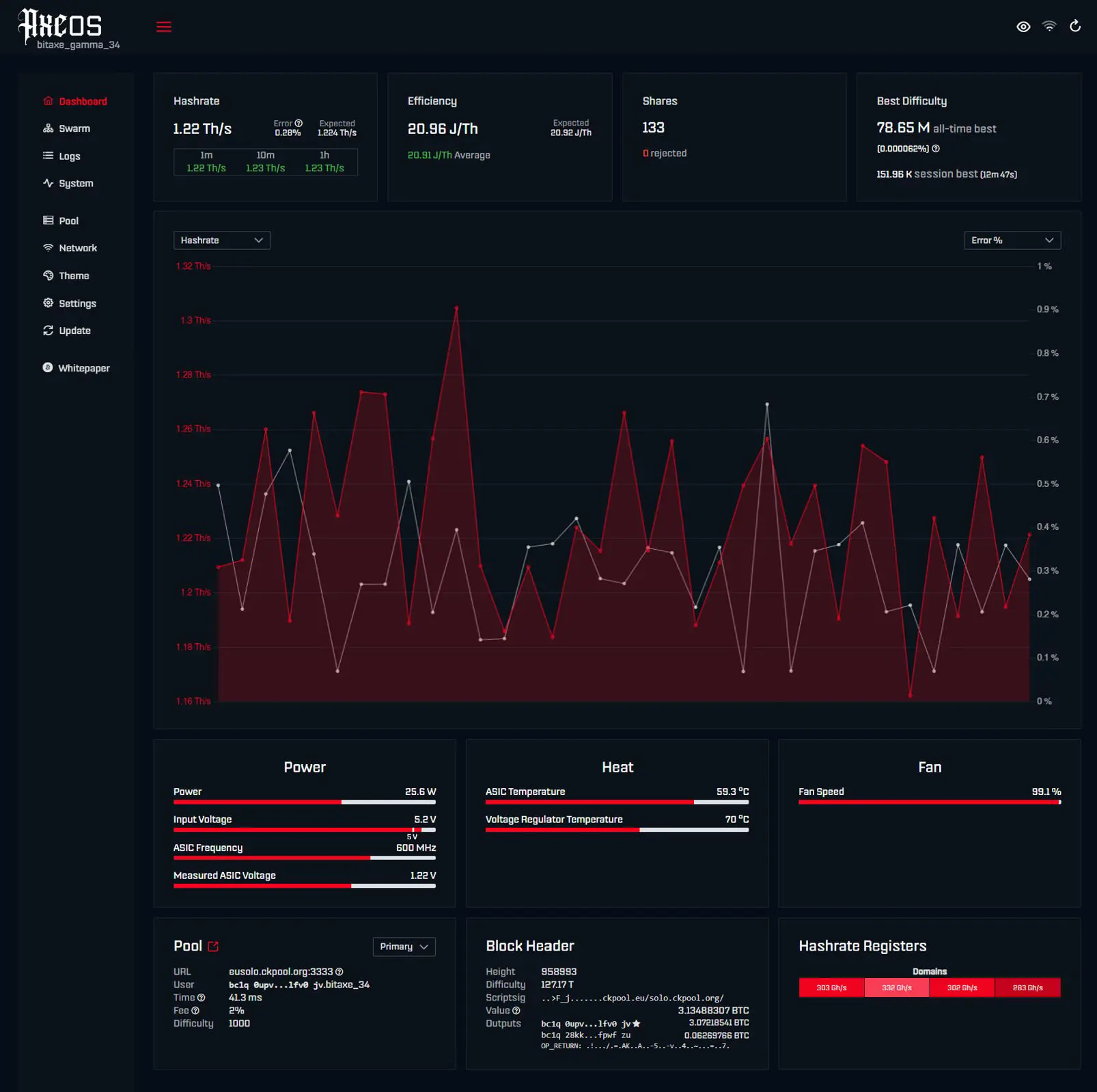
The main dashboard shows your current hashrate and rolling average, your all-time best difficulty, share counts, uptime, and pool connection status. The error percentage next to the hashrate is a hardware-level chip metric — not the same as rejected shares. A value below 2% is normal; above 5% may indicate thermal stress or an unstable overclock.
5.2 — Settings Screen
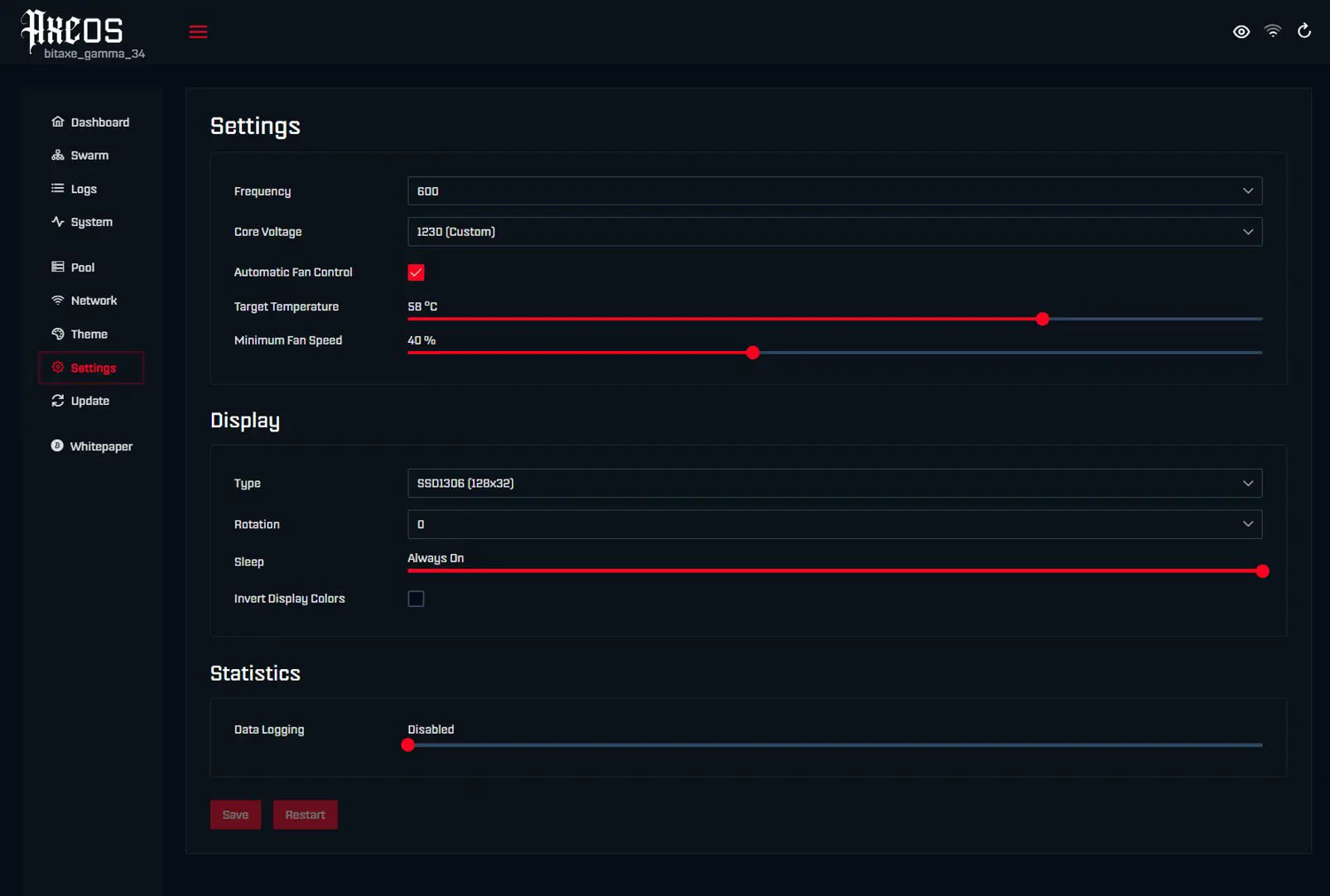
The Settings screen is where the core frequency (MHz), core voltage (mV), fan mode (Auto or Manual), fan speed percentage, and the target temperature are configured.
6. Performance Tuning
6.1 — Understanding Frequency and Voltage
Every BM1370 chip operates at a clock frequency measured in MHz. Higher frequency means more SHA-256 calculations per second — more hashrate. Higher frequency also requires higher core voltage, more power, and produces more heat. The Bitaxe Gamma 602 is preconfigured to overclock settings of ~600 MHz / ~1200 mV — settings that balance hashrate, efficiency, and long-term reliability.
6.2 — Underclocking
Underclocking reduces frequency and voltage, trading hashrate for lower power consumption, cooler temperatures, and quieter fans. This is the right choice if the device is running in a warm room (above 30 °C ambient), or if you want to reduce electricity consumption. To underclock, navigate to Settings, reduce the frequency in steps of 25–50 MHz, click Save, and Restart.
6.3 — Overclocking
Overclocking increases hashrate, heat, power consumption, and component wear. Smart Mining’s 12-month guarantee does not cover damage caused by overclocking beyond safe parameters. Run the device at the preconfigured settings for at least 24 hours before attempting any tuning.
6.3.1 — Step-by-Step Procedure
- Open AxeOS Settings. Set fan mode to Manual and fan speed to 100%.
- Note your current frequency and voltage — write them down.
- Raise frequency by 25 MHz. Click Save, then Restart.
- Wait 10 minutes. Let the hashrate and temperature stabilise.
- Check: maximum power draw is 26 W with the supplied power adapter — the power draw must stay below this value, or you risk damaging the adapter. Chip temperature must stay below 65 °C. Error percentage should ideally stay below 2%. The device must not reboot spontaneously.
- If stable, return to step 3. If unstable: reduce frequency by 25 MHz and raise voltage by 25 mV before retrying.
- Run the confirmed stable settings for at least 6 hours before considering them confirmed.
To configure the frequency and voltage to values not present in the dropdown menu (Overclock Mode), enter “?oc” after the URL in the address bar (http://192.168.1.xx/#/settings?oc).
6.3.2 — Community-Documented Settings
These are starting points. Every chip is different (the silicon lottery). Your device may be stable at higher or lower settings.
| Profile | Frequency | Voltage | Hashrate | Power | Efficiency | Notes |
|---|---|---|---|---|---|---|
| Underclock | ~500 MHz | ~1125 mV | ~1.0 TH/s | 19 W | 18.0 J/TH | Eco / silent (ambient above 30 °C) |
| Stock | 525 MHz | 1150 mV | ~1.1 TH/s | 20 W | 18.7 J/TH | Device default — stable on all units |
| Overclock | 600 MHz | 1200 mV | ~1.2 TH/s | 24 W | 20.0 J/TH | SmartMining.com preconfigured setting |
| Aggressive OC | 625 MHz | 1250 mV | ~1.3 TH/s | 26 W | 20.0 J/TH | Maximum advised for supplied adapter |
7. Firmware Updates
Keeping AxeOS updated ensures the latest performance improvements, bug fixes, and features, including improved pool compatibility and UI enhancements.
7.1 — OTA Update via Web Interface
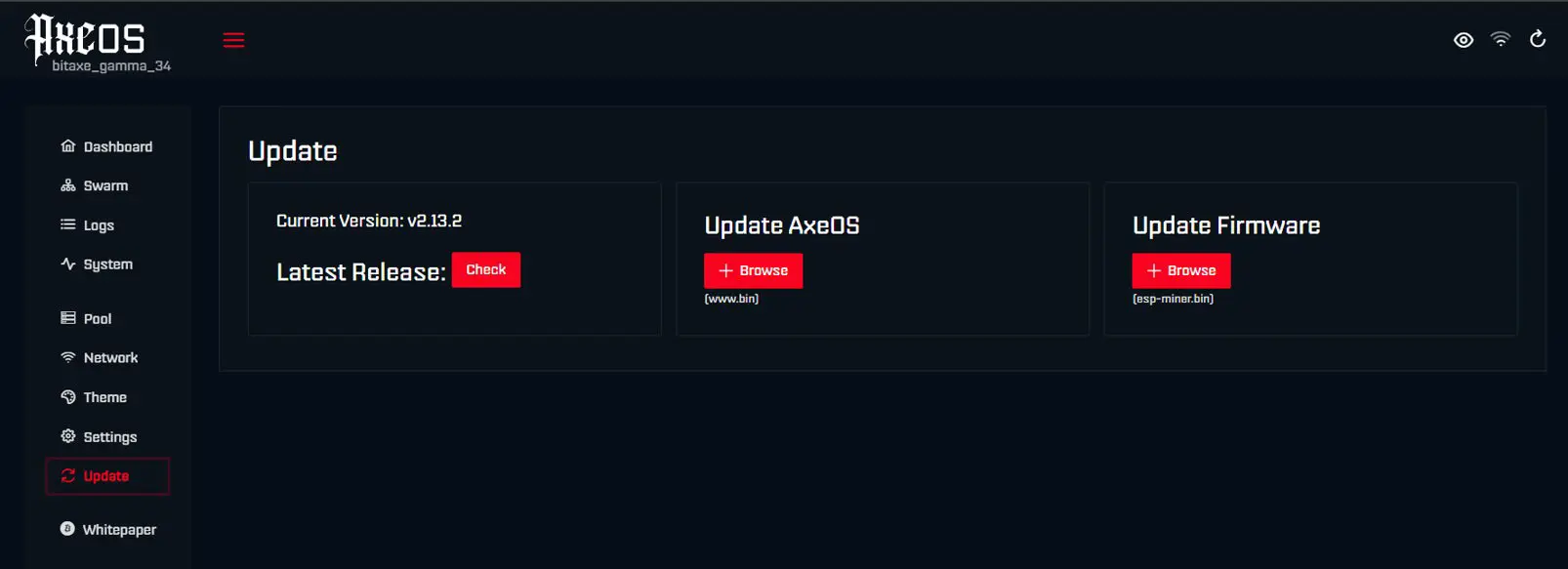
- In the AxeOS web interface, go to the Update section and click the Check button in the Latest Release section. In the Privacy Warning popup, click Continue.
- If the Latest Release version is higher than the Current Version, 2 files will be displayed. Download both the esp-miner.bin file and the www.bin file (if a security warning is shown in the browser, select Keep in the download menu).
- For both the Update AxeOS and Update Firmware sections, click Browse to select the relevant downloaded files to install the updates (renaming the files to “www.bin” and “esp-miner.bin” if required).
- The device will restart automatically after updating the firmware.
7.2 — Emergency Firmware Recovery
If the device is unresponsive after a failed update, connect it to a PC or Mac via USB-C. Open the ESPHome Web Flasher at web.esphome.io in Google Chrome, select the correct .bin file for the Bitaxe Gamma 602, and follow the on-screen instructions. Contact support@smartmining.com before proceeding if you are unsure.
8. Troubleshooting
8.1 — Device Does Not Power On
| Symptom | Likely Cause | Solution |
|---|---|---|
| No display, no fan | Power supply not connected | Check barrel jack connection at both ends; verify wall outlet |
| No display, fan runs | Display connection loose | Power off; contact support@smartmining.com |
| Display flickers then off | Voltage drop — inadequate PSU | Use only the included 5 V 6 A 30 W supply |
8.2 — Wi-Fi Issues
See the full Wi-Fi troubleshooting table in Section 3.2.1.
8.3 — Low or Unstable Hashrate
| Symptom | Likely Cause | Solution |
|---|---|---|
| Hashrate 0 for first 10 minutes | Normal — ASIC initialising | Wait; hashrate stabilises after 5–10 minutes |
| Hashrate wildly fluctuating | Normal SHA-256 variance | Judge by the 15-minute rolling average |
| Consistently below 1 TH/s at stock | Thermal throttling | Check chip temperature; improve airflow |
| Hashrate drops to 0 after long run | Lost pool connection | Check Wi-Fi signal; restart; check pool status online |
| High error percentage (>5%) | Unstable overclock or overheating | Reduce frequency; check temperature |
8.4 — Overheating
| Symptom | Likely Cause | Solution |
|---|---|---|
| Chip temp above 65 °C at stock | Insufficient airflow or high ambient | Increase clearance; check fan is spinning; reduce ambient temp |
| Device shuts down automatically | Auto-shutdown threshold reached | Check placement; reduce frequency; clean fan and heatsink |
| Fan at 100% constantly | High ambient temperature or OC | Reduce frequency; move to a cooler location |
| Temperatures rising over weeks | Thermal paste degradation | Re-apply quality thermal paste; contact support if unsure |
8.5 — Pool Connection Issues
| Symptom | Likely Cause | Solution |
|---|---|---|
| Pool shows Disconnected | Wrong URL or port | Verify URL and port in Settings against Section 3.4.1 |
| Shares submitted but pool shows 0 hashrate | Wrong wallet address | Check wallet address — must be a valid on-chain bc1q address for BTC |
| Rejected shares appearing | Pool config error or stale firmware | Check pool URL; update firmware |
| Pool dashboard shows miner but 0 hashrate | Pool-side delay | Pool dashboards update slowly — wait 15 minutes |
8.6 — Display and Interface Issues
| Symptom | Likely Cause | Solution |
|---|---|---|
| OLED blank after boot | Display issue | Power cycle; if persistent, contact support |
| Garbled display text | Firmware issue | Update to the latest AxeOS firmware |
| Web interface does not load | Wrong IP or wrong network | Check IP on OLED; ensure device is on home Wi-Fi |
| Settings do not save | Browser cache or firmware bug | Clear browser cache; try Chrome; update firmware |
9. Regulatory Compliance
9.1 — Regulatory Compliance

9.1.1 — CE Declaration of Conformity
Smart Mining S.r.l. declares that the Bitaxe Gamma 602 complies with the following EU Directives: 2014/30/EU (Electromagnetic Compatibility); 2014/35/EU (Low Voltage); 2011/65/EU as amended by 2015/863/EU (RoHS); and 2014/53/EU (Radio Equipment Directive, applicable to the Wi-Fi module). The CE mark affixed to the product confirms this conformity.

9.1.2 — FCC Statement
This device complies with Part 15 of the FCC Rules. Operation is subject to: (1) this device may not cause harmful interference; (2) this device must accept any interference received, including interference that may cause undesired operation. Changes not expressly approved by Smart Mining S.r.l. could void the user’s authority to operate the equipment.

9.1.3 — UKCA Declaration
This product complies with the UK Radio Equipment Regulations 2017, the Electromagnetic Compatibility Regulations 2016, and the Electrical Equipment (Safety) Regulations 2016.
9.2 — Environmental Information
9.2.1 — WEEE (EU 2012/19/EU)
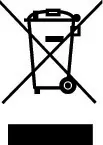
This product is marked with the crossed-out wheeled bin symbol, indicating that it must not be disposed of with unsorted municipal waste. At the end of its useful life, dispose of this product through an authorised WEEE collection point or return it to Smart Mining S.r.l. for recycling. Incorrect disposal may cause environmental harm due to potentially hazardous substances in electronic components. For WEEE disposal in Italy, contact your local Comune or visit www.cdcraee.it.

9.2.2 — RoHS Compliance
This product complies with EU Directive 2011/65/EU (RoHS) as amended by 2015/863/EU (RoHS 3), restricting the use of hazardous substances including lead, mercury, cadmium, hexavalent chromium, PBBs, and PBDEs in electrical and electronic equipment.

9.2.3 — Battery Information
This product contains no user-replaceable batteries.
10. Support and Warranty
10.1 — Smart Mining Commercial Guarantee
Your Bitaxe Gamma 602 is covered by a 12-month commercial guarantee from the date of delivery, in addition to the statutory legal guarantee of conformity under D.Lgs. 206/2005 (Italian Consumer Code). The commercial guarantee covers manufacturing defects and hardware failures under normal operating conditions.
What’s covered:
- Dead-on-arrival (DOA) units that fail to power on or hash correctly out of the box
- Component failures under normal operating conditions (fan, ASIC, PCB defects, OLED display issues)
- Firmware issues directly attributable to the pre-installed software
- Power supply failures
What’s not covered:
- Physical damage from drops, liquid exposure, or electrical surges
- Damage resulting from overclocking beyond manufacturer specifications
- Modifications to hardware or firmware by the user
- Use of third-party power supplies
- Operation outside the specified temperature range
- Normal wear and tear (fan dust and noise increase over time, thermal paste degradation)
EU consumers have additional statutory warranty rights under EU Directive 2019/771, which may extend or complement the above terms. To make a claim, email support@smartmining.com with your order number and a description. We respond within 2 business days.
10.2 — Open-Source Community
The Bitaxe Gamma 602 is part of the Bitaxe open-source ecosystem. For firmware discussions, overclock settings, and community support, visit github.com/bitaxeorg or search #Bitaxe and #OpenSourceMining on Twitter/X. The r/BitcoinMining subreddit is also a helpful resource.
10.3 — Contacting Smart Mining S.r.l.
✉️ Email: support@smartmining.com
🌐 Webmail: smartmining.com/contact/
Response: within 2 business days
Appendix A — Glossary
| Term | Definition |
|---|---|
| ASIC | Application-Specific Integrated Circuit — a chip designed exclusively for SHA-256 hashing |
| BM1370 | Bitmain’s 5 nm SHA-256 ASIC chip, the same silicon used in the Antminer S21 Pro |
| SHA-256 | Secure Hash Algorithm 256-bit — the mathematical function used for Bitcoin and Bitcoin Cash mining |
| Hashrate | SHA-256 calculations per second. GH/s = gigahashes; TH/s = terahashes per second |
| Block reward | The amount of BTC or BCH paid to the miner who solves a block (currently 3.125 BTC / 3.125 BCH) |
| Solo mining | Competing alone for the full block reward — high variance, potentially life-changing if you win |
| Pool mining | Mining with others — rewards split proportionally, regular small payments |
| Stratum | Network protocol for communication between miners and mining pools |
| Best difficulty | The highest-difficulty share your device has found — your closest approach to a full block win |
| AxeOS | The open-source firmware for Bitaxe devices, based on ESP-Miner by the Bitaxe project |
| ESP32-S3 | The microcontroller that runs AxeOS and manages Wi-Fi connectivity |
| VRM | Voltage Regulator Module — converts input voltage to the precise voltage required by the BM1370 |
| OTA update | Over-the-Air firmware update — applied wirelessly through the AxeOS web interface |
| WEEE | Waste Electrical and Electronic Equipment — EU directive governing e-waste disposal |